Subscribe Now

Powered 
by FeedBurner

Showing posts with label android. Show all posts

CANVAS knight | pictures


Samsung Galaxy S4 Android 4.4.2 KitKat update

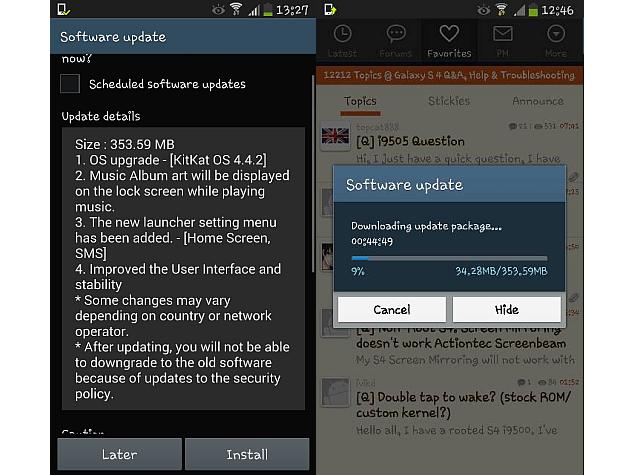
Samsung Galaxy S4 (GT-I9500) has started receiving the Android 4.4.2 KitKat update in India, soon after the rollout for the Exynos 5 Octa 5410-powered variant began globally.

The rollout of the Android 4.4.2 update for the Galaxy S4 GT-I9500 was reported on the XDA developers forum, and is a 353.59MB download. Apart from the numerous updates brought by Android 4.4.2 KitKat, the Galaxy S4 gets a few TouchWiz UI changes as well, as partially detailed by the upgrade screenshot.

Samsung has detailed a few features the Galaxy S4 will get with the v4.4.2 update, such as an improved UI, new launcher settings menu, and that music album art will be displayed on the lock screen. Overall system stability will also be improved, according to the company.

Google and Samsung had announced the Android 4.4.2 update for the Galaxy S4 Google Play Edition in late November.

Samsung has usually kept quite tight-lipped about exact timelines for its updates, but a recently revealed list has indicated a wide range of international Galaxy smartphones and tablets due to get their Android 4.4 KitKat updates, from which the Galaxy S III is conspicuously missing.

The Samsung Galaxy Note 3 reportedly starting receiving the Android 4.4.2 KitKat update in Poland in mid-January, and reportedly began seeding in late January for India.

So far, few devices are yet to be upgraded to Android 4.4, or launch with it, apart from Google Nexus devices, and Google Play editions. January's Android distribution numbers, showed that users on Android 4.4 KitKat formed only 1.8 percent of the total users, moving up only 0.4 points from last month's 1.4 percent

How to tag Wifi access points as mobile hotspots on your Android device

There are many reasons why you might want to use
a mobile hotspot with an Android device. Maybe
you're using a tablet without a mobile data
connection of its own. Perhaps you're traveling
overseas and hoping to avoid data roaming
charges. Either way, Android 4.1 comes with well-
hidden option that lets you properly mark mobile
access points -- we're talking something other
than your home router or the AP in Starbucks -- as
mobile hotspots, allowing you to better control your
use of mobile data.

Take a look after the break.

Before we begin, it's worth noting that if you're
tethering one Jelly Bean (Android 4.1+) device to
another, the connecting device will already know
that it's hooked up to a hotspot versus a more
robust access point. Provided both devices are
running 4.1 or higher, Android handles all that
stuff behind the scenes, meaning there's no need
to manually add Wifi names.

But if you're connecting to a Mifi or a non-Android
phone, you'll need to tell Android that you're
connected to a mobile hotspot. This option is
tucked away under Settings > Data usage. From
there, hit the three dots in the top right corner (or
the menu key, if you have one), and press "Mobile
Hotspots." Next you'll be presented with a list of
saved wireless networks, and you can check the
ones which are mobile hotspots.

Once you've done this, Android will know it should
limit data usage on these mobile networks in
certain ways. For example: music streaming apps
might not download so much in the background,
and any mobile data restrictions you've set for
certain apps will apply when you're on the tethered
connection too.

It's a small step, but one that's not too obvious, and
one that can help you avoid burning through a
Mifi or tethered phone's data allowance.

Android Secret Codes..

All of these would be entered
through the phone dialer (just punch in the
sequence as shown). Since most hidden
menus are manufacturer specific, there’s no
guarantee that they’ll work across all
Android smartphones, but you can try them
out nevertheless on your Samsung, HTC,
Motorola, Sony and other devices. Be
advised, though, that some of these can
cause serious changes to your device’s
configuration, so don’t play with something
that you don’t fully understand.
*#06# – IMEI number
*#0*# – Enter the service menu
*#*#4636#*#* – Phone information,
usage statistics and battery
*#*#34971539#*#* – Detailed camera
information
*#*#273282*255*663282*#*#* –
Immediate backup of all media files
*#*#197328640#*#* – Enable test mode
for service
*#*#232339#*#* – Wireless LAN tests
*#*#0842#*#* – Backlight/vibration test
*#*#2664#*#* – Test the touchscreen
*#*#1111#*#* – FTA software version
(1234 in the same code will give PDA and
firmware version)
*#12580*369# – Software and hardware
info
*#9090# – Diagnostic configuration
*#872564# – USB logging control
*#9900# – System dump mode
*#301279# – HSDPA/HSUPA Control Menu
*#7465625# – View phone lock status
*#*#7780#*#* – Reset the /data
partition to factory state
*2767*3855# – Format device to factory
state (will delete everything on phone)
##7764726 – Hidden service menu for
Motorola Droid